

WebRTC, DNS and TLS Leaks in Antidetect Browsers: What Gets Past Your Proxy

Independent and reader-supported. Some links here are affiliate links: if you sign up through them, we may earn a commission at no cost to you. It never changes our scores or verdicts. Affiliate disclosure

Contents 10
A proxy changes the IP that a site sees for your page requests. But a browser talks to the network in more ways than page requests. WebRTC asks a server for your public address over UDP, the browser looks up domain names, it opens every secure connection with a TLS handshake, and the TCP connection underneath has a shape of its own. Each of these can tell a site something different from what your proxy says.
This piece goes through the 3 leaks media buyers hear about most, WebRTC, DNS and TLS, plus the TCP layer that few people check. On October 23, 2026 we ran Chrome 156 behind a proxy that logged every connection, looked at what a site could see, and checked the standards, Chromium's own documentation and what antidetect vendors offer in their settings. I've used Dolphin, Linken Sphere, AdsPower and Multilogin in my own work; the facts below come from that test and from the sources listed at the end.
What counts as a leak?
3 different things go by that name. The first is traffic that goes around the proxy, so the site or a server it uses sees your real IP. WebRTC is the classic case. The second is a lookup that goes to the wrong place, such as DNS queries going to your home internet provider. The third isn't a leak of your IP at all: it's a layer the proxy can't change, like the TLS handshake your browser sends or the TCP fingerprint of the proxy server, that disagrees with what your profile claims.
Why it matters for an antidetect browser profile. The first 2 can put your home IP or your provider's country next to a proxy in another country. The third creates exactly the kind of contradiction detection companies score, as our piece on how antidetect browsers get caught explains.
How does WebRTC get around your proxy?
By design. RFC 8828, the standard on how browsers should handle IP addresses in WebRTC, says it in plain words: if the client is behind a proxy "but direct access to the Internet is permitted, WebRTC's STUN checks will bypass the proxy and reveal the public IP address of the client." The same RFC says that "By default, WebRTC traffic should not be sent through proxy servers," because video and audio suffer over the TCP connections proxies use.
Most proxies can't carry it anyway. WebRTC works over UDP. The RFC notes that UDP isn't supported by "all HTTP and most SOCKS" proxies, and Chromium's documentation is explicit about its own side: "In Chrome SOCKSv5 is only used to proxy TCP-based URL requests. It cannot be used to relay UDP traffic." So with a typical HTTP or SOCKS5 proxy, WebRTC either goes around it or doesn't connect at all.
Here's what we saw. We ran a small proxy on our test PC that logged every connection, pointed Chrome 156 at it, opened BrowserLeaks' WebRTC page and also collected WebRTC candidates the way any site's script can. We repeated it with 3 values of Chrome's WebRTC IP handling setting:
- default — 2 candidates: a masked local address ending in .local and our public IP. The public IP came from a STUN request over UDP.
- default_public_interface_only — 1 candidate: our public IP. The same STUN request over UDP.
- disable_non_proxied_udp — No candidates at all. WebRTC had no route it was allowed to use.
Every connection to BrowserLeaks went through our proxy, and the proxy can't carry UDP, so the public IP in the first 2 rows could only have come from a request that went around it. Our proxy ran on the same PC, so its exit IP was the PC's own, and BrowserLeaks reported "No Leak." Behind a real proxy, that same candidate would be your home IP sitting next to the proxy's IP, which is the leak WebRTC tests look for.
Your local IP is mostly safe in Chrome. Since Chrome 76, rolled out in August 2019, Chrome replaces private IP addresses in WebRTC with random names ending in .local, as the masked candidate in our first row shows. Google's announcement says this applies to "all sites except those that have getUserMedia permissions," meaning sites you allowed to use your camera or microphone. The public IP via STUN is the leak that still matters.
What do antidetect browsers do about WebRTC?
They all offer some version of 3 choices. Leave WebRTC as it is, which leaks; replace the public address with the proxy's IP; or switch WebRTC off. Several now add a 4th: block only the UDP traffic that doesn't go through the proxy. That's Chrome's disable_non_proxied_udp, the setting that left our page with no candidates at all behind an HTTP proxy. Octo describes its version as "similar to disabling WebRTC; however, instead of IP spoofing, TCP-based traffic will continue to flow." Here's what the vendors' docs list, checked on October 23, 2026:
- Dolphin{anty} — Off, Real, Without UDP, Altered, Manual. Altered.
- AdsPower — Replace, Forward, Disabled, Real, plus a Proxy UDP option. Disabled.
- Octo Browser — Based on IP, Real, Disabled, plus a Disable UDP option. Based on IP.
- Multilogin — Masked, Custom, Real, Disabled. Masked.
- Linken Sphere — Adaptive, Fake, Direct, N/A, Off. Adaptive.
- Kameleo — Automatic, Manual, Block, Off. Automatic is marked recommended.
- GoLogin — Based on IP, Off. Not stated.
- Incogniton — Altered, Real, Disabled, Only proxy. The docs say keep Altered.
- Hidemyacc — Altered, Disable, Real. Altered.
Most vendors tell you to replace, not switch off. Dolphin marks Off as "not recommended," and its blog warns that with WebRTC disabled "the source of traffic may become more suspicious about you, since ordinary users usually do not do so." Kameleo says Block "can appear suspicious, as most users do not block WebRTC," and Octo writes that "fully disabling WebRTC may look rather suspicious." Check Point's October 2026 report lists "WebRTC suppression patterns" among the indicators platforms should look for, and GoLogin adds a practical cost: "Off disables WebRTC entirely, which some sites require enabled to function correctly."
AdsPower is the exception. Its default is Disabled. AdsPower says that "instead of blocking the browser API (which websites can detect), AdsPower intercepts traffic," so that "Websites interpret the block as a firewall or network restriction." If you use AdsPower with static proxies, decide consciously whether you want that default or Replace.
Replacing isn't invisible either. AdsPower describes its Replace mode as "Good for general use, but advanced sites may detect the replacement." Linken Sphere goes further: "Partial WebRTC functionality during substitution is one of the side effects actively used by anti-fraud systems to detect multi-accounting," and it adds that the mechanism "in most anti-detect browsers is implemented similarly." No mode leaves no trace. Replacing keeps the profile closest to an ordinary Chrome with WebRTC on, and it's the default at most of the vendors above.
With rotating proxies, the replaced IP has to follow the proxy. Multilogin's Masked mode does: "If the proxy IP changes while the profile is running, the WebRTC value updates too." Linken Sphere has a Live mode "designed for dynamic proxies with timer rotation" that keeps WebRTC, languages, geo and time zone matched to the current IP. Hidemyacc fixes the WebRTC address at launch, so with a rotating proxy it says "the safest option is to select Disable." If your antidetect's docs don't say, rotate the proxy during a test session and run a WebRTC test again.
How can DNS give you away?
A DNS leak test shows who resolves your lookups. BrowserLeaks describes its test as finding "which DNS servers your browser is using to resolve domain names" by resolving 50 random domain names, and warns that "faulty VPN/proxy software can lead to your device sending DNS requests directly to your ISP's server." If those servers belong to your home provider while your proxy sits in another country, the site has learned where you really are.
With the right proxy type, Chrome resolves names at the proxy. Chromium's proxy documentation: "When using an HTTP proxy in Chrome, name resolution is always deferred to the proxy," and with SOCKS5 "name resolution is always done proxy side." Our proxy log confirmed it: Chrome asked the proxy to connect to host names, not to IP addresses it had looked up itself. The exception is SOCKS4, where "name resolution for target hosts is always done client side," which sends your lookups to your own resolver. Use HTTP or SOCKS5 proxies, not SOCKS4.
Other parts of the browser can still look up names themselves. Chromium's design notes on SOCKS proxies warn that "There are other components of Chrome which may issue DNS resolves directly and hence bypass this proxy server," and name "the DNS prefetcher" as the most notable. That note is old, so treat it as a reason to test rather than a diagnosis: run a DNS leak test inside every new profile with its real proxy.
Antidetects send DNS through the proxy by default. Dolphin: "The DNS comes from the proxy — meaning it uses the DNS server provided by your proxy provider." Octo: "By default (if the value is empty), the proxy or VPN DNS server will be used." Kameleo: "DNS resolution is also handled by the proxy." Octo and Linken Sphere also offer a custom DNS field, and Linken Sphere warns: "We do not recommend making changes to the DNS settings unnecessarily."
A resolver in another country isn't automatically a leak. In our own run without any proxy, BrowserLeaks found Google's public DNS servers answering from a different country than our IP. Public resolvers do that. What gives you away is your home provider's resolver next to a proxy IP somewhere else.
What does the TLS handshake say?
Your proxy passes the handshake through untouched. With an HTTP or SOCKS5 proxy, the browser opens the encrypted connection to the site itself and the proxy only tunnels it. Cloudflare describes TLS fingerprints as identifying "TLS clients based on how they initiate connections," and notes that JA4 "improves on JA3 by sorting ClientHello extensions." Chrome has shuffled the order of those extensions since early 2023, which broke the older JA3 method, so JA4 sorts them before hashing.
We tested what a fake Safari sends. We gave Chrome 156 a Safari on macOS user agent and opened BrowserLeaks' TLS page and the tls.peet.ws API. The user agent said Safari. The JA4 said t13d1517h2_8daaf6152771_cb7bf5808d99, identical to the same browser with a Chrome user agent, and the HTTP/2 fingerprint was identical too. FoxIO, the company that created JA4, lists that exact string as Chrome's JA4 in its README. The older JA3 hash changed from one connection to the next, which is the shuffling at work.
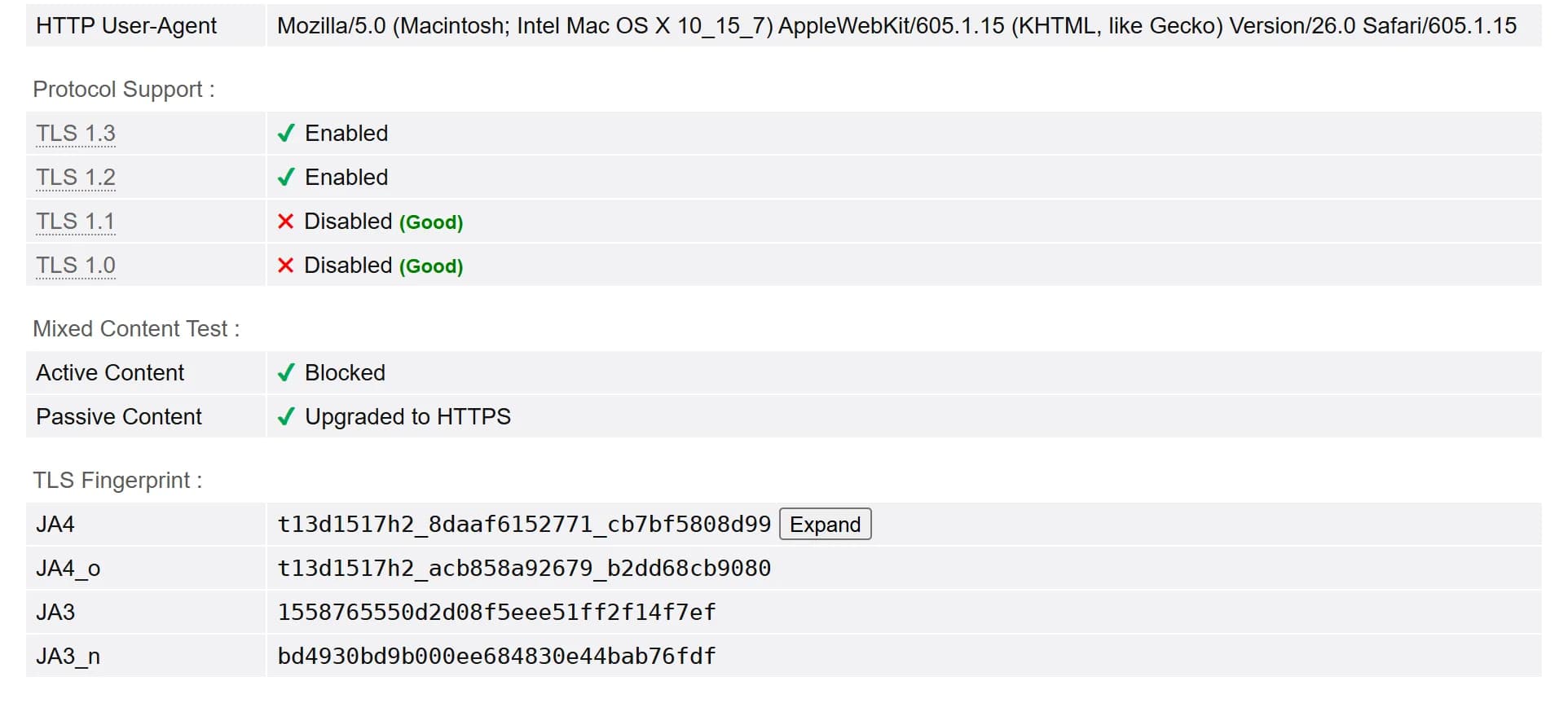
Vendors say the handshake should stay as it is. Octo: "Octo's TLS behavior is identical to that of modern Chrome," and it warns that "manually disabling important TLS extensions can break fingerprint consistency." Kameleo says JA4 fingerprints "are determined by the profile at creation and remain fixed for the lifetime of that profile," so the handshake stays consistent across sessions. Some antidetects also offer a switch to disable TLS cipher suites; by Octo's logic, leave it off unless a specific site needs it, because a Chrome that drops ciphers no longer sends Chrome's handshake.
So a profile that claims another browser needs another engine. A Chromium kernel sends a Chromium handshake whatever the user agent says, unless the vendor patches the network stack as well. That's why some vendors ship separate engines for other browsers, such as AdsPower's Firefox-based FlowerBrowser and Kameleo's Junglefox. For most media buyers the simple answer is to claim Chrome on a Chromium kernel and keep its version current.
QUIC is the next layer vendors are working on. QUIC, the UDP-based transport behind HTTP/3, has its own fingerprint: FoxIO lists a separate QUIC JA4 for Chrome. Linken Sphere enables QUIC support by default and says that "Recently, anti-bot systems have been paying more and more attention to its support," while Kameleo states that it "does not support UDP-based proxies." If your proxy carries only TCP, QUIC can't go through it.
What does the TCP connection say?
It shows the proxy, not you. Every TCP connection has a fingerprint too: how the connection opens, window sizes, options. FoxIO, describing its JA4T method, says: "When a device is connected through a Proxy, the TCP fingerprint of the proxy is seen on the server side, not the client," and that JA4T "also helps to identify intermediary proxies, VPNs, load balancers, tunneling, etc."
Detection companies compare it with the profile. Fingerprint, which sells device identification to sites, has an OS mismatch check that compares "the network signature of the request" with the operating system of the client. A Windows profile whose connections arrive from a proxy server with a different operating system is that mismatch. You can't change the TCP layer from inside the browser; it depends on the proxy. Look at your proxy's TCP fingerprint on BrowserLeaks or tls.peet.ws and factor it into which proxies you use for which profiles.
How do you test a profile for leaks?
Run 4 checks inside the profile, with the proxy you'll really use:
- WebRTC. Open a WebRTC leak test. The public IP it finds should be your proxy's IP, or there should be none if you chose to switch WebRTC off. Your home IP means the mode is wrong.
- DNS. Open a DNS leak test. None of the resolvers should belong to your home provider.
- TLS. Open a TLS test and compare the JA4 with the browser your profile claims. A profile claiming Firefox or Safari shouldn't show Chrome's fingerprint.
- TCP. Look at the proxy's TCP/IP fingerprint and note what operating system it suggests.
Repeat after every change. A new proxy, a new proxy type or a kernel update can change any of these results. For what these test sites can and can't tell you, see What Fingerprint Checkers Really Check.
Checklist: what to do
Questions and answers
What is a WebRTC leak?
WebRTC asks a STUN server for your public address over UDP, and most proxies only carry TCP, so the request goes around the proxy. A site's script can read the address from the WebRTC candidates and see your real IP next to the proxy's. Antidetect browsers fix it by replacing that address with the proxy's IP or by switching WebRTC off.
Should I disable WebRTC in my antidetect profiles?
Usually not. Real Chrome has WebRTC on, some sites need it, and Check Point lists "WebRTC suppression patterns" among the signals platforms should look for. Replace the address with the proxy's instead, which is what Dolphin, Octo, Multilogin and Kameleo default to or recommend. With a rotating proxy, use a mode that follows the IP during the session, such as Multilogin's Masked or Linken Sphere's Live mode; if your antidetect fixes the WebRTC address at launch, vendors such as Hidemyacc recommend Disable.
Do SOCKS5 proxies leak DNS?
Not in Chrome's main network path: Chromium's documentation says that with SOCKS5 "name resolution is always done proxy side." SOCKS4 resolves names on your device, so avoid it. Other browser components may still look up names directly, so test each profile with a DNS leak test.
Can a proxy change my TLS fingerprint?
No. An HTTP or SOCKS5 proxy only tunnels the encrypted connection, so the site sees the handshake your browser's engine makes. In our test a Chromium profile claiming Safari still sent Chrome's JA4.
What is a TCP or JA4T fingerprint?
It describes how a device opens TCP connections. Behind a proxy, the site sees the proxy server's TCP fingerprint, not yours, which can reveal that a proxy is in use and what operating system it runs.
Author’s conclusion
A proxy hides the IP of your page requests and nothing else. WebRTC goes around it by design, DNS follows it only with the right proxy type, and the TLS handshake and TCP fingerprint tell a site what engine and what server are really behind the profile. Antidetects handle WebRTC well if you pick the right mode, Chrome handles DNS well with HTTP and SOCKS5 proxies, and the TLS and TCP layers are only consistent if the profile claims what it really runs on.
My advice: set WebRTC to replace the IP, with a mode that follows the proxy when it rotates or Disable if there is none, buy HTTP or SOCKS5 proxies, claim Chrome on a Chromium kernel, and run a WebRTC, DNS and TLS test in every profile before the first login. It takes 2 minutes and catches the mistakes no fingerprint setting can hide.
Lu Discover, Editor-in-chief
Sources for this article
- rfc-editor.org — RFC 8828: WebRTC IP Address Handling Requirements (proxies, STUN and modes 1 to 4)
- chromium.googlesource.com — Chromium docs: proxy support in Chrome (name resolution with HTTP, SOCKS4 and SOCKS5 proxies; SOCKS5 carries TCP only)
- chromium.org — Chromium design documents: SOCKS proxy and DNS resolution
- groups.google.com — Google, discuss-webrtc: private IP addresses exposed by WebRTC changing to mDNS hostnames (Chrome 76, 2019)
- developer.chrome.com — Chrome extensions API: privacy.network.webRTCIPHandlingPolicy values
- browserleaks.com — BrowserLeaks WebRTC leak test
- browserleaks.com — BrowserLeaks DNS leak test
- browserleaks.com — BrowserLeaks TLS client test
- tls.peet.ws — TLS, HTTP/2 and TCP/IP fingerprint API
- developers.cloudflare.com — Cloudflare docs: JA3 and JA4 fingerprints
- github.com — FoxIO JA4+ README: JA4 examples and Chrome's extension randomization
- foxio.io — FoxIO: JA4T TCP fingerprinting and proxies
- docs.fingerprint.com — Fingerprint Smart Signals reference: VPN detection and OS mismatch
- research.checkpoint.com — Check Point Research: antidetect browsers in fraud and influence operations, indicators (October 20, 2026)
- gologin.com — GoLogin docs: advanced profile settings, WebRTC
- docs.hidemyacc.com — Hidemyacc docs: create a new profile, WebRTC tab
- docs.dolphin-anty.com — Dolphin{anty} docs: digital fingerprint and profile settings (WebRTC modes)
- docs.dolphin-anty.com — Dolphin{anty} docs: browser spoofing FAQ (Altered by default)
- docs.dolphin-anty.com — Dolphin{anty} docs: proxy FAQ (DNS comes from the proxy)
- dolphin-anty.com — Dolphin{anty} blog: mistakes affiliates make with antidetect browsers (WebRTC)
- help.adspower.com — AdsPower help: how to choose WebRTC mode
- help.adspower.com — AdsPower help: browser fingerprint (Disabled mode intercepts traffic)
- docs.octobrowser.net — Octo Browser docs: browser profile settings (WebRTC, Disable UDP, DNS)
- blog.octobrowser.net — Octo Browser blog: DNS, WebRTC and TLS leaks
- multilogin.com — Multilogin help: profile settings, fingerprint section (WebRTC Masked by default)
- ls.app — Linken Sphere docs: creating and launching a session (WebRTC modes, Live mode, DNS, QUIC)
- ls.app — Linken Sphere blog: new WebRTC substitution mode
- help.kameleo.io — Kameleo help: WebRTC spoofing options
- help.kameleo.io — Kameleo help: built-in proxy manager (DNS through the proxy, no UDP proxies)
- help.kameleo.io — Kameleo help: can JA4 fingerprints be changed
- docs.incogniton.com — Incogniton docs: privacy and network settings (WebRTC)
Companies in this article
- Dolphin{anty}Antidetect browserNot rated yet
- AdsPowerAntidetect browserNot rated yet
- Octo BrowserAntidetect browserNot rated yet
- MultiloginAntidetect browserNot rated yet
- Linken SphereAntidetect browserNot rated yet
- KameleoAntidetect browserNot rated yet
- GoLoginAntidetect browserNot rated yet
- IncognitonAntidetect browserNot rated yet
- HidemyaccAntidetect browserNot rated yet









Related stories
 Analysis
What Fingerprint Checkers Really Check: We Ran 4 Broken Browsers Through 8 of Them
 Analysis
How Antidetect Browsers Get Caught in 2026: The Signals That Give a Profile Away
 Comparison
Comments
0 commentsNo comments yet.
Add a comment